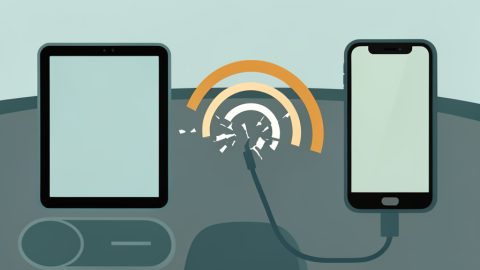
The hotel Wi-Fi giveth and the hotel Wi-Fi taketh away. You accept the terms, type your room number, get online, and settle in. Then twenty minutes later a page slides up asking you to log in again, as if the network has never seen your phone before. From its point of view, it may not have. A privacy feature built into modern phones can quietly change how your device introduces itself, and captive portals do not always cope.
So does Private Wi-Fi Address cause captive portal logins to fail on hotel Wi-Fi? Yes, it can, and it is one of the more common culprits behind repeated sign-in prompts and logins that will not stick. The feature randomizes the hardware address your phone shows the network, and some hotel portals key your access to that address. Here is exactly why it happens, and how to fix it on an iPhone or Android without giving up your privacy everywhere else.
The Short Answer
Yes. Captive portals often grant access based on your device’s MAC address, and Private Wi-Fi Address gives the network a randomized one that can look new or even change during your stay, which forces you to log in again. The fix is to set the address to Fixed, or turn it off, for that one hotel network, then reconnect and sign in. You can keep the privacy feature on everywhere else.
Why Private Wi-Fi Address Trips Up Hotel Logins
Every device has a MAC address, a hardware identifier the network uses to tell devices apart. A hotel captive portal, the sign-in page you see before the internet works, typically remembers that you paid or agreed to terms by tying your session to your MAC address for a set time.
Modern phones muddy that. To stop networks from tracking you across places by your fixed hardware address, Apple’s Private Wi-Fi Address and Android’s randomized MAC show the network a made-up address instead. If that address looks new, the portal treats you as a first-time visitor and re-challenges you. Worse, on open networks a phone may use a rotating address that changes periodically, so a session that was working can suddenly drop back to the login screen when the address rotates. Open hotel Wi-Fi, which often has no password, is exactly the kind of network where that rotation tends to kick in.
How to Fix It on iPhone and Android
You only need to change the setting for the misbehaving network, not globally. Work through these:
- On iPhone, open the network’s settings. Go to Settings, then Wi-Fi, tap the (i) next to the hotel network, find Private Wi-Fi Address, and set it to Fixed, or Off if Fixed does not help. On older iOS versions it is a simple on/off toggle, so switch it off.
- On Android, edit the network’s privacy setting. Tap the hotel network, open its settings or the gear icon, find the Privacy or MAC address option, and choose Use device MAC, or a non-rotating option, instead of a randomized one.
- Forget the network and rejoin. After changing the setting, forget the network, then reconnect so it registers your new, stable address from the start.
- Force the sign-in page to appear. If the portal does not pop up, open a plain, non-secure web page in your browser, which nudges the network to show the login. Then complete the sign-in.
- Turn privacy back on after checkout. Once you leave, set Private Wi-Fi Address back to Fixed or on for that network, so you are protected the next time.
Fixed vs Rotating vs Off
On recent iPhones, Private Wi-Fi Address offers three choices per network, and the difference matters here. Off makes your phone use its real hardware address, which portals handle best but reveals your true MAC to that network. Fixed uses a randomized address that stays the same for that network, so you keep privacy from cross-network tracking while giving the portal one steady address to recognize. Rotating changes the address periodically on networks it considers less secure, which is the setting most likely to break a hotel session mid-stay.
For most hotel problems, switching from Rotating to Fixed is enough, and it keeps more privacy than turning the feature fully off. Reach for Off only if Fixed still will not hold the login. Android’s newer versions behave similarly, keeping one randomized address per network by default, with an option to fall back to the device’s real address when a portal demands it.
The Privacy Tradeoff, and Why the Feature Exists
It is worth knowing what you are trading. Apple and Google added address randomization so that shops, networks, and analytics systems cannot follow your device from place to place by its unchanging hardware address, or count your repeat visits. That is a genuine privacy win, and you should keep it on for networks you use regularly or do not fully trust.
Turning it off, or setting it to Fixed, for a single hotel exposes only that one address to that one network for your stay, which is a small, contained tradeoff for getting online. The longer-term fix is on the hotels: networks that support newer standards like Passpoint and the Captive Portal API can recognize devices without leaning on a fixed MAC, which sidesteps the whole problem. Until those are everywhere, the per-network toggle is your tool.
This is general technical information. Menu names and the exact steps vary by phone, operating system version, and manufacturer, and the settings change over time, so check your device’s current Wi-Fi settings and the official help pages if the labels differ. Remember to re-enable Private Wi-Fi Address after your stay so you keep its privacy benefit on other networks.
Frequently Asked Questions
Does Private Wi-Fi Address cause captive portal logins to fail?
It can. Captive portals often authorize access by your device’s MAC address, and Private Wi-Fi Address shows the network a randomized one. If that address looks new, the portal makes you log in again, and if it rotates during your stay, an active session can drop back to the sign-in page. Setting the address to Fixed or Off for that network, then reconnecting, usually resolves it.
Fixed vs Rotating Wi-Fi address: which should I use for hotel Wi-Fi?
Use Fixed for hotel Wi-Fi. Fixed gives the network one steady randomized address, so the captive portal can recognize you for your whole stay while you keep privacy from cross-network tracking. Rotating changes the address periodically on less secure networks, which is what breaks hotel logins mid-session. Only switch fully Off if Fixed still fails to keep you signed in.
How do I turn off Private Wi-Fi Address for one network?
On iPhone, go to Settings, Wi-Fi, tap the (i) next to the network, and set Private Wi-Fi Address to Fixed or Off. On Android, open that network’s settings and change the Privacy or MAC address option to Use device MAC or a non-rotating choice. The change applies only to that network, so your other connections keep the privacy feature enabled.
Is it safe to turn off Private Wi-Fi Address at a hotel?
For a single stay, the risk is small and contained. Turning it off reveals your device’s real hardware address only to that one network, letting that operator recognize your device on their network. It does not affect your privacy elsewhere. Keep the feature on, ideally set to Fixed, for networks you use often or do not trust, and switch it back on after you check out.
Why does hotel Wi-Fi keep asking me to log in again?
The most common reasons are a rotating or randomized MAC address that the portal reads as a new device, a session that has simply timed out, or the portal not being triggered to reappear. Set Private Wi-Fi Address to Fixed for that network and reconnect, and if the login page will not show, open a plain non-secure web page to force it. That clears most repeated-login loops.
The Bottom Line
If a hotel network keeps forgetting you, your phone’s privacy feature is a likely reason, because a randomized or rotating Wi-Fi address can look like a new device to a captive portal or change mid-stay and drop your session. The clean fix is to set Private Wi-Fi Address to Fixed, or off if needed, for that one network, reconnect, and sign in, then restore it when you leave. You lose nothing elsewhere and gain a Wi-Fi session that actually holds. For more on getting online while you travel, see our guides to why 2FA codes fail on hotel Wi-Fi and why Wi-Fi says connected but nothing loads, or browse the YouGottaRead Tech section.