You hand the remote to your seven-year-old, and a minute later they have tapped out of the cartoon and into something with a very adult rating, because nothing stopped them. On Apple TV+, there was never a real kids profile with a lock, and the parental controls lived somewhere in the device settings instead of the app. For a parent, that gap between “there are controls” and “the controls actually stop my kid” is the whole ballgame.
The Apple TV+ alternatives with better kids profiles and PIN controls close that gap by building family safety into the profile itself. Apple has started to catch up, with a dedicated Kids Mode arriving in a recent tvOS update, but the platforms below have offered locked kids profiles, per-profile ratings, and purchase PINs for years. Here are seven, compared on the controls that actually keep the wrong thing off the screen.
The 7 Alternatives at a Glance
- Disney+: Junior Mode plus a four-digit profile PIN.
- Netflix: kids profiles with per-profile maturity locks.
- YouTube Kids: a separate app with age tiers.
- Prime Video: kids profiles and a purchase PIN.
- Max: kids profiles with PIN-locked switching.
- Paramount+: a kids mode with content limits.
- Hulu: kids profiles and profile PIN locks.
How We Chose These
We judged these on the controls parents actually need, not the size of the catalog. The core tests were a dedicated kids profile with a simplified, age-appropriate view, a PIN that locks switching from a kids profile to an adult one, and per-profile maturity or ratings settings.
We also weighed purchase protection, since accidental buys are a common headache, and how easy the controls are to set up and find. The result favors platforms built around families, so you can lock things down once and trust the profile to hold.
Why Apple TV+ Falls Short for Families
The issue is where the controls live. Apple TV+ as an app never included its own kids profiles, so parents leaned on device-level tools like Screen Time and Family Sharing, and for a long time there was no way to lock profile switching behind a PIN, a frequent complaint from parents.
Apple has begun addressing this, adding a dedicated Kids Mode and account-free profiles in a recent tvOS update. That helps, but the per-profile ratings locks and purchase PINs on family-first services are still more granular, which is why parents who want tight control often add one of the platforms below.
Quick Comparison
| Service | Kids profile | Profile PIN lock | Best for |
|---|---|---|---|
| Disney+ | Junior Mode | Yes | Younger kids |
| Netflix | Yes, granular | Yes | Mixed-age homes |
| YouTube Kids | Separate app | Passcode | The youngest kids |
| Prime Video | Yes | Purchase PIN | Blocking accidental buys |
| Max | Yes | Yes | Older kids and teens |
| Paramount+ | Kids mode | Yes | Simple setup |
| Hulu | Yes | Yes | Bundled family plans |
1. Disney+
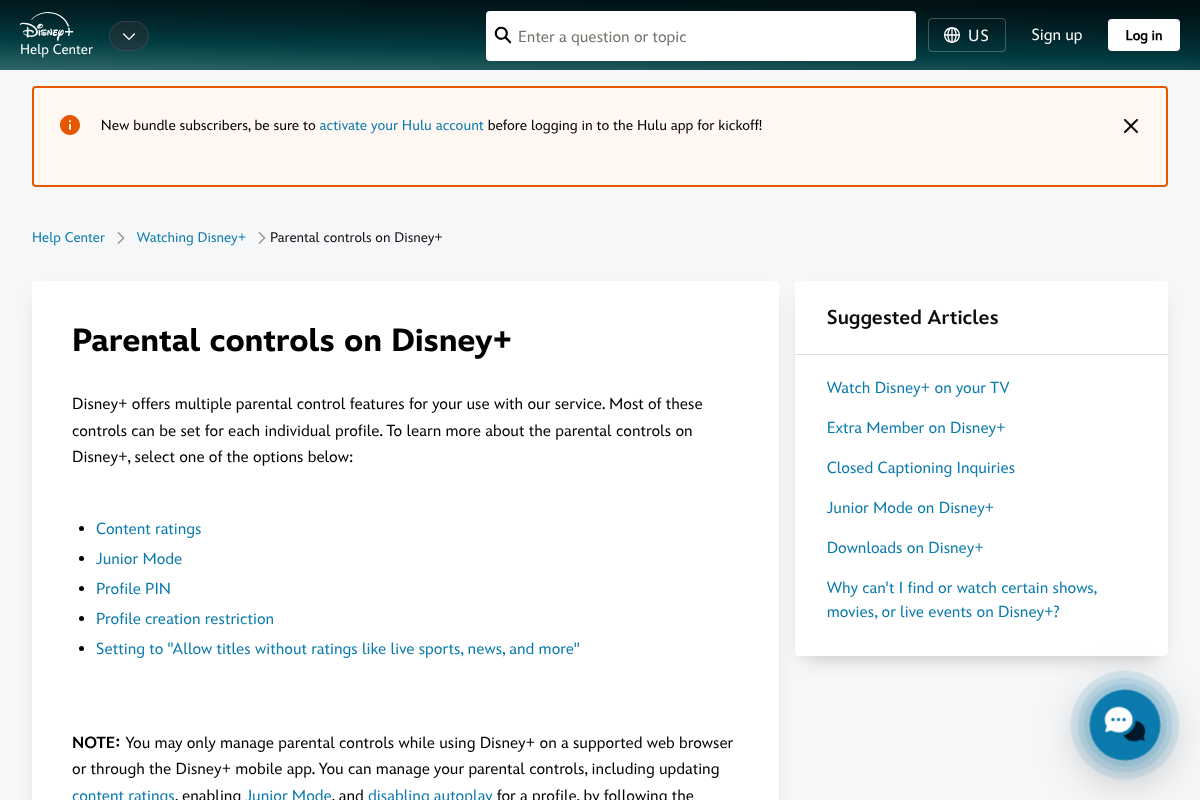
Disney+ is the family default for good reason. Its Junior Mode gives young kids a simplified, ad-free space that only shows age-appropriate titles, and you can add a four-digit profile PIN so a child cannot slip into an adult profile.
Parents can also restrict who creates new profiles and control access to more mature content in the Star hub. Between the locked kids experience and clear rating controls, Disney+ parental controls are among the easiest to set up and trust for younger children.
2. Netflix
Netflix is often called the gold standard for streaming controls. You can create dedicated kids profiles, set a maturity level per profile so each child sees only what fits their age, block specific titles, and add a Profile Lock PIN that stops anyone from jumping into an adult profile.
The catch is that the most powerful settings live in the browser account page rather than the TV app, so it pays to set them up on a computer. Once configured, Netflix parental controls give a mixed-age household fine-grained, per-child control.
3. YouTube Kids
For the youngest viewers, YouTube Kids is a separate app built for the job. You pick a content level by age, from preschool to older kids, or switch to an approved-content-only mode where your child sees only videos you have hand-picked, and a passcode gates the settings.
It also adds a screen-time timer, which the streaming apps generally lack. If your worry is a small child wandering into the open internet of regular YouTube, this walled garden is the safest starting point of the bunch.
4. Prime Video
Prime Video earns its place on purchase protection as much as profiles. It supports kids profiles and pairs with Amazon Kids for filtered content, but its standout is a purchase PIN that blocks accidental movie and episode buys, a setting that is easy to overlook and often off by default.
If your household streams on a device where any profile can rent or buy with a tap, that PIN is the setting that protects your wallet. For families who fear the surprise charge as much as the wrong show, Prime Video covers both.
5. Max
Max is a strong pick for homes with older kids and teens. It offers kids profiles with age-based ratings and lets you PIN-lock profiles so switching to a mature one requires the code, which matters on a service that carries plenty of adult content alongside family fare.
You set a maturity rating per profile and can restrict the jump to grown-up profiles. For a household that wants one service spanning cartoons and prestige drama without the kids stumbling into the latter, Max balances range with real control.
6. Paramount+
Paramount+ keeps family setup simple. It offers a kids mode that limits profiles to age-appropriate content, along with a PIN to protect adult profiles, so you can carve out a safe space for children without wading through a maze of settings.
It is a good middle option for parents who want straightforward controls rather than the most granular ones. Between a kids-focused profile and a locking PIN, it covers the essentials that Apple TV+ leaves to the device.
7. Hulu
Hulu rounds out the list, especially for families already in the Disney bundle. It supports kids profiles that filter to age-appropriate titles and lets you set a profile PIN, so children stay in their lane and cannot wander into Hulu’s substantial mature catalog.
Because it often comes bundled with Disney+, many families get both sets of controls in one subscription. For a home that wants broader shows than Disney+ alone with kid profiles still locked down, Hulu is a natural companion.
The Settings to Lock Down on Any Platform
Whichever service you choose, four settings do most of the work. Create a dedicated kids profile rather than sharing yours, set the maturity or ratings level on each profile, and add a PIN that locks switching from a kids profile to an adult one.
Then find the purchase or app-store PIN and turn it on, since it is frequently off by default and is what stops surprise charges. Finally, switch off autoplay of the next episode if you want to control screen time. Those four take a few minutes and cover the gaps that matter most.
Streaming features and parental controls change with app updates and vary by device and region, and no control is foolproof, so active supervision still matters. Confirm the current settings on each service and set them up on the device your children actually use before relying on them.
Frequently Asked Questions
What are the best Apple TV+ alternatives for kids profiles and PIN controls?
Disney+ and Netflix lead, with dedicated kids profiles and four-digit profile PIN locks, Disney+ for younger children and Netflix for granular per-profile control. YouTube Kids is best for the youngest viewers, Prime Video adds a purchase PIN, and Max, Paramount+, and Hulu all offer kids profiles with PIN-locked switching for mixed-age homes.
Does Apple TV+ have kids profiles and a profile PIN?
Historically the Apple TV+ app did not, and parents relied on device-level Screen Time and Family Sharing, with no way to PIN-lock profile switching. A recent tvOS update added a dedicated Kids Mode and account-free profiles, which helps, but the per-profile ratings locks and purchase PINs on family-first services are still more granular.
Disney+ vs Netflix for parental controls: which is better?
Disney+ is simpler and better for younger kids, thanks to Junior Mode and an easy profile PIN. Netflix is more granular, letting you set a maturity level and block titles per profile, which suits mixed-age households. Both offer a four-digit profile lock. Choose Disney+ for ease and Netflix for fine-tuned control.
How do I stop kids from making purchases on streaming apps?
Turn on the purchase or account PIN, which is often off by default. Prime Video, Fire TV, and Apple’s device settings all offer a code that must be entered before a rental or purchase goes through. Setting it prevents accidental buys when a child is browsing, which is one of the most common surprise charges parents report.
Which streaming service is safest for very young children?
YouTube Kids is usually the safest starting point for the youngest viewers, because it is a separate app with age-based content levels and an approved-content-only mode where children see only videos you have chosen. It also includes a screen-time timer. For curated shows and movies, Disney+ Junior Mode is a strong, locked-down alternative.
The Bottom Line
Apple TV+ is fine to watch, but it was never built to hand a young child safely, and even the new Kids Mode trails the platforms designed around families. Disney+ and Netflix lead on locked kids profiles and PINs, YouTube Kids wins for the youngest, and Prime Video, Max, Paramount+, and Hulu each cover a niche from purchase protection to older kids. Whichever you pick, set the profile, ratings, and PINs in a few minutes so the screen stays safe. For more on getting your streaming setup right, browse YouGottaRead’s Movies section, including our guides to privacy toggles worth disabling on a smart TV and the streaming settings to check before you press play.