You settle in for a movie, the sound is big and clean, and then you notice it: the actor’s lips move a fraction of a second before the words arrive. Once you see it, you cannot unsee it. What stings is that this is your good setup, a modern TV feeding a soundbar over a single HDMI cable, exactly the arrangement that is supposed to just work. The good news is that the cause is almost never the cable or a broken box. It is a setting, and you can walk it back into sync in a few minutes.
An eARC lip sync delay on a soundbar happens because sound and picture take slightly different amounts of time to process before they reach you, and movies make even a small gap obvious. This guide explains why it drifts, then gives you a fix-it-in-order checklist so you change one thing at a time instead of randomly poking menus. Work through it top to bottom and most setups snap back into alignment.
Quick Answer
Start at the TV. Open its sound settings and find the audio delay or audio sync control, then nudge it until voices match lips while a person is talking on screen. If your soundbar has its own audio sync or lip sync setting, use that too. Turn off heavy audio and video processing that adds lag, make sure you are on an eARC-labeled HDMI port with a good cable, and if the delay only shows on one app or device, adjust that source. Change one setting at a time.
Why Movies Drift Out of Sync Over eARC
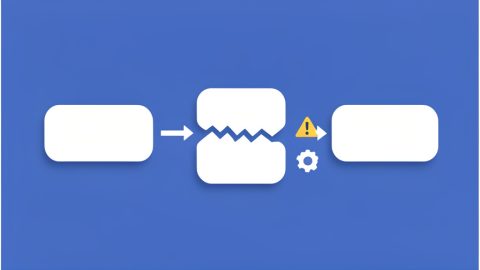
The picture and the sound reach your senses down two different pipelines. Your TV does real work on the image, like motion smoothing, noise reduction, and upscaling, and each step takes time, so the video is delayed slightly before it appears. The audio, meanwhile, travels out over eARC to the soundbar, which decodes and processes it and then plays it. When those two timings do not match, you get lip sync delay, and dialogue-heavy movies are where a gap of even a fraction of a second becomes glaring.
eARC, the enhanced audio return channel in the HDMI specification, is the high-bandwidth path that lets your TV send full-quality movie soundtracks back to the soundbar. The HDMI organization describes eARC as supporting the most advanced audio formats and highest audio quality. That is exactly why you use it, but richer formats like object-based Dolby Atmos also take a moment to decode, which is one more place a small delay can creep in. None of this is a fault; it is timing, and timing is adjustable.
Fix It in Order
The trick is to change one thing, watch a talky scene, and judge before moving on. Random tweaking just hides which change actually helped. Go in this order:
- Use the TV’s audio sync control first. In your TV’s sound or expert audio settings, look for a control called Audio Sync, Audio Delay, A/V Sync, or Lip Sync. Play a scene with a clear close-up of someone speaking and adjust until the voice lands on the lips. This single slider fixes the majority of cases.
- Check the soundbar’s own delay setting. Many soundbars have a separate audio sync or lip sync adjustment in their settings or app. If the TV control alone does not fully nail it, use the soundbar’s setting to fine-tune. Do not fight both at once; set the TV first, then trim with the soundbar.
- Turn off extra video processing. Motion smoothing and heavy picture modes add video lag. Try a movie or filmmaker picture mode, which usually trims processing, and see if the gap shrinks. Game mode also reduces video delay, though it changes the look, so it is more of a diagnostic than a final choice for films.
- Simplify the audio format as a test. If the delay appears only with the fanciest formats, temporarily switch the TV or app audio output to a simpler setting like standard stereo or PCM and watch again. If it lines up, you have confirmed decoding time is part of the cause and can decide how to balance quality against sync.
- Confirm the eARC connection. Make sure both the TV and soundbar are on the HDMI ports labeled eARC or ARC, that eARC is enabled in the TV settings, and that you are using a capable High Speed or Ultra High Speed HDMI cable. A marginal cable or the wrong port can cause odd audio behavior.
- Power cycle the chain. If things still feel off after settings look right, turn off the TV, soundbar, and any source box, unplug them for a minute, then power up the soundbar first, then the TV. A clean handshake sometimes clears a stuck delay.
eARC vs ARC and Why It Matters Here
It helps to know which return channel you are actually using. ARC, the original audio return channel, has less bandwidth and often falls back to compressed audio. eARC is the enhanced version with far more bandwidth, which is what carries lossless and object-based movie soundtracks intact. For lip sync, the practical point is twofold: eARC generally handles the negotiation between TV and soundbar better, and the richer formats it enables are the ones most likely to need a small sync nudge because they take longer to decode.
So if your TV and soundbar both support eARC, use it, and make sure it is switched on rather than silently running as plain ARC. Then treat the audio sync slider as a normal part of setup rather than a sign something is broken. A movie mix routed through eARC sounding a touch late is expected behavior you correct, rather than a defect you replace hardware over.
When the Delay Lives in the Source
Sometimes the culprit is not the TV or the soundbar at all, but the thing feeding them. If the gap shows up only on one streaming app or only on your external streaming stick or player, the delay is coming from that source, and that is where to fix it. Several streaming players and apps have their own audio or A/V sync setting buried in their menus; adjust it there and leave the TV control alone for that input.
A few more source-side checks worth a look:
- It is app-specific. If one app drifts and others are fine, restart or update that app before changing any hardware settings, since the problem may be its playback rather than your gear.
- It is one input. If only the game console or disc player is off, adjust that device’s audio delay, because the rest of your setup is already aligned.
- Wireless links add lag. Bluetooth headphones or wireless rear speakers can introduce their own delay that a wired soundbar does not, so judge sync on the main speakers first.
Menu names and the exact location of these settings vary by brand, model, and software version, and they change with updates, so treat the labels here as a guide and consult your specific device’s official support if you cannot find a control.
Frequently Asked Questions
How do I fix eARC lip sync delay on a soundbar?
Start at the TV: open its sound settings, find the audio sync, audio delay, or lip sync control, and adjust it while watching someone speak on screen until the voice matches the lips. If the soundbar has its own sync setting, use it to fine-tune after the TV. Then reduce heavy video processing by trying a movie or filmmaker picture mode, confirm you are on an eARC-enabled HDMI port with a good cable, and if the gap is source-specific, adjust that app or device. Change one setting at a time so you know what worked.
Why is my soundbar audio ahead of or behind the picture only on movies?
Movies expose small timing gaps because dialogue close-ups make a fraction-of-a-second offset obvious, and film soundtracks often use richer audio formats that take longer to decode. Your TV also delays the picture slightly while it processes the image. When the audio and video timings do not match, you notice it most on talky scenes. Using the TV’s audio sync control, and trimming heavy picture processing, usually brings movies back into alignment.
Does eARC cause lip sync problems, or does it fix them?
eARC does not cause the problem by itself; it is simply the high-bandwidth channel that carries full-quality movie audio from the TV to the soundbar. Because it enables advanced formats that take a moment to decode, an eARC setup can be slightly more prone to a small, correctable delay. The HDMI specification includes audio and video sync handling, but the practical fix is still the audio sync slider in your TV or soundbar settings, which lets you dial the timing in for your room and gear.
Should I adjust the audio delay on the TV or the soundbar?
Set the TV’s audio sync control first, since it usually has the most direct effect, then use the soundbar’s own sync setting only to fine-tune if needed. Adjusting both at the same time makes it hard to tell what actually helped, so change one, watch a talking scene, and judge before touching the other. If a single app or external device is the only thing out of sync, fix the delay on that source instead of the TV.
Can turning off motion smoothing help with lip sync?
Yes, often. Motion smoothing and other heavy picture processing add video lag, which can push the image behind the sound. Switching to a movie or filmmaker picture mode typically reduces that processing and can shrink the gap, and game mode reduces video delay even more, though it changes the picture’s look. Try a lighter picture mode as one of your steps, then use the audio sync control to close any remaining offset.
The Bottom Line
A lip sync delay through an eARC soundbar feels like a flaw in an expensive setup, but it is really just two timelines that need a nudge back together. Start with the TV’s audio sync control, fine-tune with the soundbar, lighten the video processing, confirm the eARC connection, and check the source when only one app or device drifts. Change one thing at a time and you will find the fix fast, then forget the whole thing and enjoy the movie. For more on getting your viewing setup right, see our guides to turning off the audio description that keeps switching on and smart TV toggles worth disabling, or browse the YouGottaRead Movies section.