The old phone is sitting in a drawer, cracked but still alive, and it holds the only copies of your two-factor codes. You have been meaning to switch to a better authenticator, or set up your new phone, but you have been putting it off because it feels risky. Here is the thing to internalize right now: as long as that old phone still powers on and unlocks, you can move every code off it in a few minutes. The day it dies, gets wiped, or gets traded in, that easy path disappears.
Choosing an authenticator app alternative when your old phone has the only 2FA codes is really two jobs: get the codes off the old device while you still can, and pick a new app that will never trap you like this again. The good news is that modern authenticators, including Google Authenticator itself, now let you export your codes, so migration is quick if you act before the old phone is gone. Here is exactly how to do it, and which apps keep you in control.
The Short Answer
While the old phone still works, use your authenticator’s built-in export. In Google Authenticator, tap the menu and choose Transfer or Export accounts to get a QR code, then import it on your new phone or into a better app. Pick a new authenticator with a user-controlled encrypted backup and multi-device support, like 2FAS, Ente Auth, or Aegis, so you are never locked to one device again. Verify every code before wiping the old phone.
The Race Against Time
The single most important thing to understand is that your codes are portable only while the old phone still functions. The secret keys behind your codes live on that device, and the app’s export feature is how you copy them out. Once the phone is dead, factory-reset, or handed to a trade-in program, there is no export button to press, and you are left recovering each account the hard way. So before you do anything else with that old phone, treat moving your codes as the first task, not the last, and do not wipe or trade it in until every code is confirmed working elsewhere.
How to Get Your Codes Off the Old Phone
Work through these on the old device while it is still unlocked:
- Use the app’s built-in export. In Google Authenticator, open the menu and choose Transfer accounts, then Export accounts, on iOS, or Transfer codes, then Export codes, on Android. Confirm with your PIN or biometrics, select the accounts, and it produces a transfer QR code. Note that it moves up to 10 accounts per QR, so repeat if you have more.
- Import onto the new app. Scan that QR with Google Authenticator on the new phone, or with a better app that can read the export, since apps like 2FAS, Ente Auth, and Aegis can import a Google Authenticator transfer QR. Your codes appear on the new device without ever disabling two-factor on the old one.
- Or re-enroll each account by hand. The most bulletproof method is to open each service’s security settings, turn two-factor off and back on, and scan the fresh setup QR with your new app. It is tedious, but it sidesteps any export-format issues and guarantees a clean seed on the new device.
- Verify every code before you wipe anything. Open the new app and confirm it generates a working code for each account, ideally by signing in once, before you factory-reset or trade in the old phone. A code that looks present but was not imported correctly is the trap to avoid.
- Save backup codes as a safety net. While you are in each account’s security settings, download or print the one-time backup codes and store them somewhere safe. They are your rescue if a migration ever goes wrong again.
How to Pick an Authenticator You Won’t Get Locked Into
If you are switching apps anyway, choose one built so this never happens again. The features that matter are a backup or export you control with your own password, sync across more than one device, and cross-platform support so a future switch between iPhone and Android is painless.
| App | Backup you control | Multi-device | Platforms |
|---|---|---|---|
| 2FAS | Yes, encrypted | Yes, browser extension | iOS, Android |
| Ente Auth | Yes, end-to-end | Yes, synced | iOS, Android, desktop |
| Aegis | Yes, encrypted export | Manual | Android only |
| Password manager (TOTP) | Yes, in your vault | Yes | Cross-platform |
| Google Authenticator | Export QR; sync keys held by Google | Limited | iOS, Android |
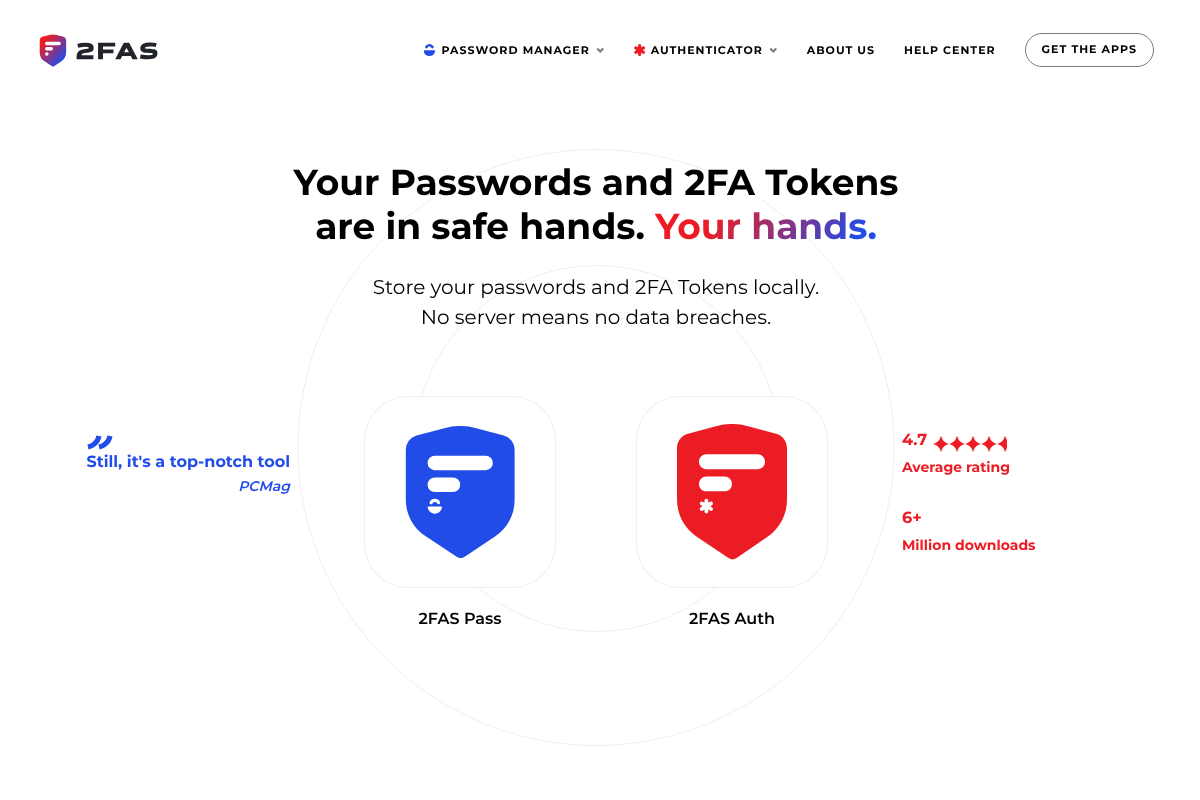
2FAS is a strong open-source pick that stores your tokens locally, offers an encrypted backup, and adds a browser extension for signing in on a computer. You can see its approach on the 2FAS site.
Ente Auth is another open-source option with end-to-end encrypted sync across phones and desktop and easy import and export, which you can explore on the Ente Auth site. Aegis suits Android users who want an encrypted export they hold, while storing codes in a password manager keeps them in a vault that already syncs. Each is a real step up from being trapped on a single phone, so pick the one whose backup and platform fit your life.
If the Old Phone Is Already Gone
If the old device is dead, wiped, or traded in, you cannot export, so you fall back to recovery. For each locked account, use the backup codes you saved when you set up two-factor, if you have them. If not, go through the service’s account recovery process, which may involve a recovery email or phone, identity verification, or contacting support, and expect it to take time and vary by service. It is slower and more stressful than exporting would have been, which is exactly why moving codes off a working old phone first is worth doing the moment you think of it.
This is general security guidance, not account-specific advice, and app menus, export features, and recovery processes change over time and differ by service. Never share a verification code with anyone, verify your new setup before wiping any device, and keep saved backup codes somewhere secure. For account recovery, follow the official process for each specific service rather than any third-party shortcut.
Frequently Asked Questions
How do I pick an authenticator app alternative when my old phone has the only codes?
First, while the old phone still works, export your codes using the app’s transfer feature, then import them into a new app. For the new app, pick one with a backup or export you control, multi-device sync, and cross-platform support, such as 2FAS, Ente Auth, or Aegis, so you are never locked to one device again. Verify every code works on the new app before you wipe or trade in the old phone.
Can I move Google Authenticator codes to a new phone?
Yes. Open Google Authenticator on the old phone, tap the menu, and choose Transfer or Export accounts, which creates a QR code, moving up to 10 accounts at a time. Scan that QR with Google Authenticator on the new phone, or with an app like 2FAS, Ente Auth, or Aegis that can import it. This copies your codes without turning off two-factor on the old device, so nothing breaks during the move.
What if my old phone is dead and I can’t export?
Then you cannot copy the codes and must recover each account instead. Use the backup codes you saved at setup if you have them, or go through each service’s account-recovery process, which may need a recovery email or phone, identity checks, or support contact. It is slower and varies by service. This is why the best move is always to migrate codes off a working old phone before it is gone, rather than waiting.
Which authenticator app is best for avoiding lock-in?
Look for a user-controlled encrypted backup and multi-device sync. 2FAS is a solid open-source choice with an encrypted backup and a browser extension, Ente Auth offers end-to-end encrypted sync across phones and desktop, and Aegis gives Android users an encrypted export they hold. Storing codes in a password manager that already syncs is another option. Any of these beats an app you cannot export from, so choose by backup style and platform.
Should I keep my 2FA codes in my password manager?
It is a reasonable option, since a password manager syncs across your devices and lets you export, so you are not tied to one phone. The trade-off is that it puts your passwords and second factor in the same place, which some people prefer to keep separate for security. If you value convenience and cross-device access, a manager works well; if you prefer separation, a dedicated authenticator with its own backup is the better fit.
The Bottom Line
An old phone holding your only two-factor codes is a problem with a short deadline: it is easy to fix while the phone works and painful once it does not. So move first, choose second. Export your codes with the app’s transfer feature or re-enroll each account by hand, verify every one on the new device, and only then wipe or trade in the old phone. Then settle on an authenticator you control, such as 2FAS, Ente Auth, or Aegis, with a backup and sync that make the next phone switch a non-event. For more on getting this right, see our guides to Google Authenticator alternatives with real backups and Google vs Microsoft Authenticator for phone swaps, or browse the YouGottaRead Tech section.