


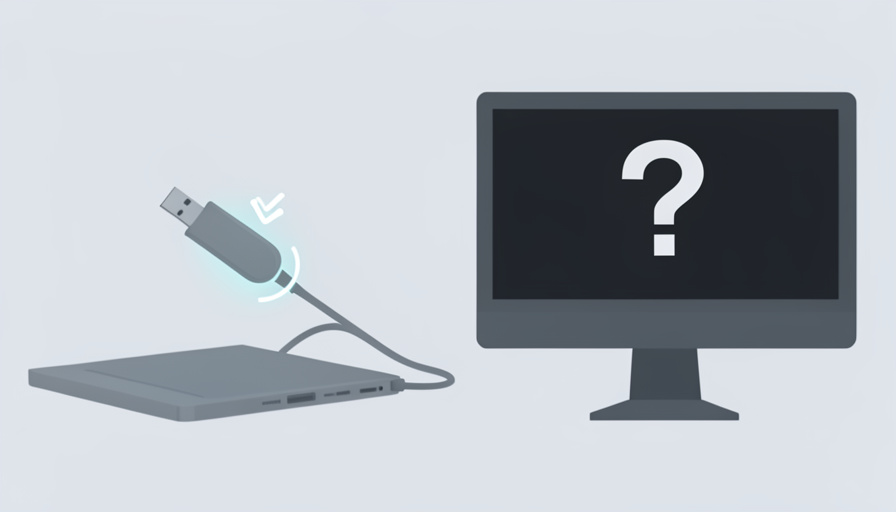
You plug the same USB-C cable into your laptop and a monitor. The laptop battery starts filling up, so the connection clearly works. And yet the external screen sits there black, like it never got the memo. It is one of the most confusing gadget failures around, because “it is charging” feels like proof the whole thing should work. Naturally, people want to know how common this is, and whether it is their cable, their port, or their laptop. So here is the honest answer about USB-C charges no display, before the made-up numbers get to you.
The short, unglamorous truth is that there is no trustworthy statistic for how often USB-C charges but shows no picture. No standards body or manufacturer publishes that rate, and any exact percentage you find online is almost certainly invented. What can be stated, with sources, is why it happens, why the data is fuzzy, and how to reason about which part is at fault. That is what this piece does instead of pretending to count.
The Bottom Line Up Front
Charging and video are two separate jobs riding on the same USB-C connector. A port or cable can happily do power and still not carry a display, because sending video over USB-C requires DisplayPort Alt Mode (or Thunderbolt or USB4), which is an optional feature that many ports and cables simply do not include. Because failures depend on your specific laptop, cable, port, and monitor, nobody can honestly give you a single percentage for how often it happens. Treat any precise figure as a guess.
Why You Will Not Find a Real Percentage
It is worth being blunt about the “statistics” framing, because the internet is full of tidy numbers here that fall apart the moment you ask where they came from.
No one measures this. Laptop makers, cable makers, USB-IF, and VESA do not publish a rate for how often a USB-C connection charges but fails to display, and there is no shared registry logging these failures across brands. What you see instead are forum threads and support posts, which are self-selected: people with a working setup rarely post “my monitor turned on as expected.” So any dataset built from complaints over-counts problems and cannot tell you a true population rate.
The outcome also depends on a stack of variables that differ for every reader: the exact laptop model and which of its ports you used, the cable, the monitor or dock, and even the firmware. A number that is true for one laptop-and-cable combination says nothing about yours. So if a page tells you a precise share, say that the cable is to blame four times out of five, it is guessing and dressing the guess up as data. The responsible answer is to explain the mechanism and the common culprits, which is what actually helps you fix it.
What the Standards Actually Say
The real “numbers” worth knowing are not percentages, they are how the technology is defined, and that is where the confusion comes from.
USB-C is a connector, not a guarantee of features. The same reversible port can carry power, data, and video, but those are separate capabilities, and a given port or cable may include some and not others. Video is the one most often missing. According to VESA, sending a display signal over USB-C relies on DisplayPort Alt Mode, described as combining video, USB data, and power over one connector, with full DisplayPort performance at monitor resolutions of 4K and beyond. The key word is that the video part is an alternate mode: it is optional, and a connection can deliver power without it.
That single fact explains the whole paradox. Charging runs over USB Power Delivery, and it can work perfectly on a port or cable that never carries a picture, because the display lanes DisplayPort Alt Mode needs are simply not present. Thunderbolt and USB4 ports include DisplayPort, so they generally do carry video, while a plain USB-C port marked only for charging or basic data often does not. Apple’s own guidance on connecting an external display tells Mac users that the ports they have determine what they can connect, and that a mismatched cable may need the right adapter, which is the same idea in consumer terms.
The Three Things That Decide Whether You Get a Picture
Since a real percentage breakdown does not exist, the useful mental model is the three links in the chain, any one of which can be the charge-but-no-display culprit:
- The cable. A charge-only or basic USB 2.0 USB-C cable can power your laptop while lacking the high-speed wiring that video needs. This is a frequent and easily missed cause, because the cable looks identical to a full-featured one. A cable rated for Thunderbolt, USB4, or full DisplayPort Alt Mode is what carries a display.
- The port on your laptop. Not every USB-C port outputs video, even on the same machine. Manufacturers often build some ports for charging and data only, and reserve video for the Thunderbolt or USB4 ports. The small icon next to the port, a display or lightning symbol, is the hint, and the spec sheet is the confirmation.
- The monitor, dock, or adapter in between. A dock or adapter has to actually support the video path from your machine, and a cheap or mismatched one can pass power while dropping the display. The monitor also has to be set to the right input.
Notice that all three can fail while charging still works, which is exactly why “but it is charging” is such a misleading clue. Power and picture travel different roads.
So How Common Is It, Really?
Honestly? Common enough to be a well-known headache, and impossible to pin to a number. The pattern is easy to describe even without a statistic: it clusters around cheaper or older cables, ports that were never meant to output video, and budget docks and adapters. It is rarer with Thunderbolt or USB4 gear used end to end, because that hardware is built to carry DisplayPort. If you want a takeaway that is true rather than invented, it is this: the failure is a compatibility gap, not a defect, and it is usually fixed by matching a video-capable cable to a video-capable port. For the step-by-step version, see our companion guide below.
This article is general technical information, not manufacturer or professional advice, and USB-C, DisplayPort Alt Mode, Thunderbolt, and USB4 support vary by device, cable, dock, and firmware and change over time. Any specific percentage for how often USB-C charges but shows no display should be treated as unverified. Check your laptop, monitor, and cable specifications and the maker’s official support pages for your exact hardware, since that is the only reliable way to confirm what your setup supports.
Frequently Asked Questions
Why does my USB-C charge but show no display?
Because charging and video are separate functions on the same connector. Your USB-C port and cable are delivering power over USB Power Delivery, but carrying a picture needs DisplayPort Alt Mode, Thunderbolt, or USB4, which is an optional capability that many ports and cables do not include. So the connection can charge fine while never sending a display signal. The fix is to use a video-capable cable with a port that actually outputs video, often a Thunderbolt or USB4 port, and to confirm the monitor input.
Is there a real statistic for how often this happens?
No. No standards body or manufacturer publishes a rate for how often USB-C charges but shows no display, and there is no shared database tracking it across brands. Numbers online are typically built from self-selected complaint threads, which over-count problems, or are simply invented. The outcome depends on your specific laptop, port, cable, and monitor, so a percentage from one setup does not apply to another. Anyone quoting an exact figure is guessing rather than citing measured data.
Does every USB-C port support an external monitor?
No, and this trips up a lot of people. On many laptops, some USB-C ports are built for charging and data only, while video is reserved for the Thunderbolt or USB4 ports. VESA notes that video over USB-C relies on DisplayPort Alt Mode, which is optional, so a port without it will charge and move data but produce no picture. Look for a small display or lightning icon by the port, and check your laptop’s specifications to see which ports are rated for video output.
Can the cable alone be the reason there is no picture?
Yes, quite often. A charge-only or basic USB 2.0 USB-C cable can power your laptop while lacking the high-speed lanes that a display needs, and it looks identical to a full-featured cable. Swapping in a cable rated for Thunderbolt, USB4, or full DisplayPort Alt Mode is one of the first things to try. Cables are an easy, cheap variable to rule out, which is why they are a good starting point before you assume the port or monitor is at fault.
Will a Thunderbolt or USB4 port fix it?
Usually, because Thunderbolt and USB4 ports include DisplayPort, so they are built to carry video as well as power and data. Using Thunderbolt or USB4 hardware from the laptop through the cable to the dock or monitor is the most reliable way to avoid the charge-but-no-display gap. It is not an absolute guarantee, since a bad cable, wrong monitor input, or unsupported adapter can still interfere, but starting with fully video-capable gear removes the most common cause.
The Bottom Line
The honest statistic for USB-C charges no display is that there is not one, and any precise percentage is invented. What is real and verifiable is the mechanism: power and video are separate jobs on the USB-C connector, video needs DisplayPort Alt Mode or Thunderbolt or USB4, and plenty of ports and cables carry power without it. So the failure is a compatibility gap you can reason about, cable, port, then the dock or monitor, rather than a mystery with a magic number. If you want to walk through fixing it, read our step-by-step guide to why USB-C charges but shows no external monitor. You can bookmark this USB-C charges but no display explainer for the standards side, or browse the YouGottaRead Tech section.


