


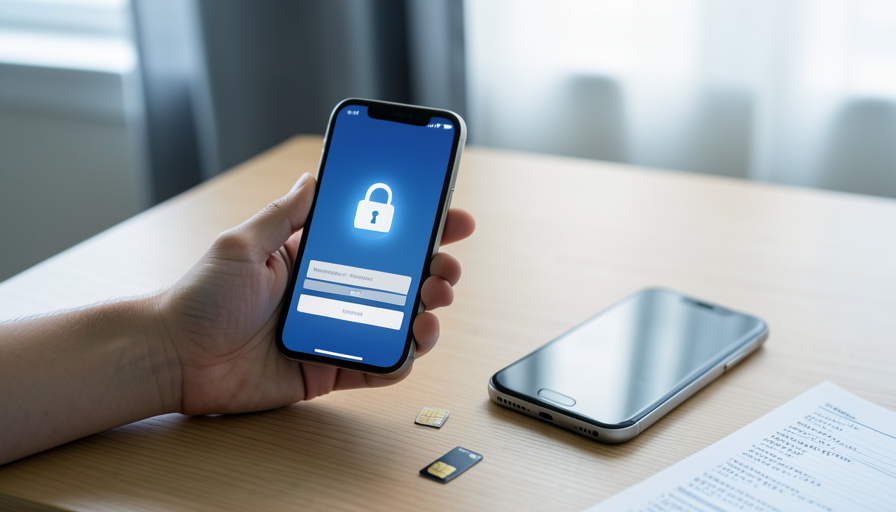
Almost every two-factor lockout traces back to a decision you made months earlier, not the login screen in front of you.
You get a new phone, trade in the old one, and a week later your bank app asks for a six-digit code that used to appear in an app you no longer have. Or your number ports to a new carrier and the text codes simply stop arriving. Being locked out of two-factor authentication rarely happens at the moment it feels like it does. It happens quietly, back when you switched 2FA on and skipped the boring backup step.
Two-factor authentication is worth keeping. It blocks the overwhelming majority of automated account takeovers, which is exactly why banks, employers, and email providers now push it so hard. The catch is that the same wall keeping attackers out will keep you out too, if your only key lived on a phone that is now wiped, sold, or sitting in a drawer with a dead battery. These are the nine mistakes behind most self-inflicted lockouts, and the specific fix for each.
The Short Version
Most two-factor lockouts come from leaning on a single method tied to one device or one phone number, then losing that device or number with no backup in place. The fix is dull and takes about ten minutes: turn on your authenticator app’s cloud backup, download each account’s one-time recovery codes and store them off the phone, add a second sign-in method, and keep your recovery email and number current. Do that once and a lost or swapped phone becomes a minor annoyance instead of a two-month support ticket.
Table of Contents
Mistake 1: Using SMS text codes as your only second factor
Text-message codes feel convenient because there is nothing to install. That convenience is also the weakness. SMS codes ride on your phone number, and a phone number is easier to lose than most people assume. Change carriers, switch to an eSIM, move abroad, let a prepaid line lapse, or fall victim to a SIM swap, and the codes route somewhere you cannot see.
SIM swapping is the ugly version of this. An attacker convinces your carrier to move your number to a SIM they control, and every code meant for you lands on their screen. In late 2024 the US Cybersecurity and Infrastructure Security Agency went as far as telling people to stop using SMS as a second factor, because the messages are not encrypted and the number can be hijacked (CISA mobile communications guidance).


The safer setup: for anything that holds money, email, or your identity, move off SMS-only and onto an authenticator app or a security key. Keep SMS registered as a fallback if the account allows more than one method, since a backup route you rarely use still beats none.
Mistake 2: Never saving your backup codes
When you turn on 2FA, most services show you a block of eight to ten one-time recovery codes and quietly suggest you save them. Almost everyone clicks past that screen. Those codes are the single most reliable way back into an account when your phone is gone, because each one works once with no device and no signal required.
Generate them when you set up 2FA, or open your security settings today and generate a fresh set. Then actually put them somewhere. A printed copy in a drawer is old-fashioned and completely effective. The point is that the codes exist and you can reach them the day the app cannot.
Mistake 3: Keeping recovery codes somewhere you cannot reach when locked out
This is the subtle one, and it catches careful people. Saving your backup codes only helps if the hiding place survives the exact emergency you saved them for.
- A screenshot of the codes in your phone’s photo library is useless once that phone is lost or wiped.
- Codes saved only inside the account they protect cannot be reached when that account is the thing locking you out.
- Codes stored in a password manager that itself uses the same authenticator create a loop: you need the app to open the vault, and the vault to recover the app.
Store recovery codes somewhere independent of the device and the account. A printout, a second offline note, or a password manager protected by a separate factor all work. The test is simple: if your phone vanished right now, could you still get to the codes? If the answer is no, move them.
Mistake 4: Setting up only one 2FA method
One method is one point of failure. If your entire login depends on a single authenticator app on a single phone, then that phone is now a master key you can lose, break, or leave in a taxi.
Good accounts let you register more than one factor. Add a second where you can: a backup security key, a second device running the same authenticator, or an app plus a saved set of codes. Two independent ways in means one failing does not end the story. This matters most for your email, because email is usually the account that can reset all the others.
Mistake 5: Wiping or trading your old phone before moving your authenticator
Here is the mechanic that surprises people: the codes in an authenticator app do not automatically follow you to a new phone the way your photos do. Each entry is built from a secret that was stored on the old device when you scanned the QR code. Reset or trade in that phone without migrating first, and those secrets are gone. On community help forums, “I lost my authenticator app changing over my phone” is one of the most repeated 2FA questions there is, and the honest answer is usually a slow recovery through each service one by one.
Two ways to avoid it. First, turn on cloud backup before you switch. Google Authenticator can sync your codes to your Google Account so they restore on a new phone after you sign in (Google Authenticator help), and Microsoft Authenticator offers its own backup and recovery flow (Microsoft support). One caution worth knowing: work and school accounts often restore only the account name, so you still re-verify those manually. Second, if your app has no sync, use its built-in transfer or re-register each account on the new phone while the old one still works. Then wipe.
For a step-by-step on doing this cleanly, see our guide on moving 2FA codes off an old phone, and if you are choosing between the two big apps, we compared Google and Microsoft Authenticator backup for phone swaps.
Mistake 6: Letting your recovery email or phone number go stale
Every account has a fallback chain, and it usually ends at a recovery email or phone number you set once and forgot. If that email is a college address that expired after graduation, or a work account you lost when you changed jobs, or an old number that has since been reassigned to a stranger, your safety net has a hole in it.
Spend five minutes checking the recovery contacts on your main accounts. Use a personal email you control long-term, not an employer or school address, and confirm the recovery number is one you still answer. This is also worth a look after any life change that swaps your email or phone, since that is exactly when the old details rot.
Mistake 7: Ignoring the clock on your phone
Authenticator codes are time-based. The app takes a shared secret and the current time and produces a fresh six-digit code every thirty seconds, and the server does the same calculation to check it. If your phone’s clock has drifted, or someone set the date and time manually and got it wrong, the two sides disagree and every code reads as invalid even though nothing is actually broken.
The fix takes seconds. Turn on automatic date and time in your phone’s settings so the clock stays in sync with the network. If codes suddenly stop working right after travel or a manual clock change, this is the first thing to check before you assume the account is lost.
Mistake 8: Assuming an email fallback will always be there
Plenty of people rely on the “try another way” link, expecting an email code to bail them out if the app fails. Sometimes that option quietly disappears once you enable a stronger method, and you only discover it is gone at the worst possible moment. Reddit and X are full of people staring at a login screen where the familiar backup route no longer shows up.
Do not trust a recovery path you have never used. Right after you set up 2FA, sign out and sign back in using your backup method once. Confirm the recovery code works, or the second device works, or the fallback email actually arrives. A backup method you have used once is far more trustworthy than one you are only guessing about.
Mistake 9: Being the only person who can get into a shared account
This one bites small businesses and families. A shared inbox, a company social account, or a joint financial login gets 2FA tied to one person’s phone. When that person leaves, travels, or loses the device, nobody else can get in, and support may refuse to help because they cannot verify ownership.
For any account more than one person depends on, set up a second administrator with their own 2FA, or create a documented break-glass account with its recovery codes stored where a trusted colleague or family member can reach them. Write down who holds what. The goal is that no single lost phone can freeze an account that matters to a group.
How the main 2FA methods compare on lockout risk
Not all second factors are equally easy to lose. Here is how the common options stack up, and the backup that closes each gap.
| Method | Lockout risk | Why | Backup that fixes it |
|---|---|---|---|
| SMS text code | High | Tied to a number you can lose or that can be SIM-swapped | Add an app or key; keep recovery codes |
| Authenticator app, no backup | High | Secrets vanish when the phone is wiped or lost | Turn on cloud sync or save the codes |
| Authenticator app with cloud sync | Low | Restores on a new phone after you sign in | Still save recovery codes offline |
| Hardware security key | Low, with two keys | Nothing to intercept, but a single key can be misplaced | Register a second key as a spare |
| Passkey | Low | Syncs through your Apple, Google, or Microsoft account | Keep a second passkey or backup codes |
| Backup codes | Lowest as a fallback | Work offline with no device or signal | Store where you can reach them when locked out |
If you want one default that balances safety and convenience for most people, it is an authenticator app with cloud sync switched on, plus a saved set of recovery codes. Reserve hardware keys and passkeys for the accounts you cannot afford to lose.
Your lockout-proofing checklist
Run this once on your important accounts, starting with your primary email. It is the ten minutes that saves the two months.
- Move money, email, and identity accounts off SMS-only to an authenticator app or security key.
- Generate each account’s backup codes and store them off the phone, somewhere you can reach without that account.
- Turn on cloud backup in your authenticator app before you ever switch phones.
- Register a second factor where the account allows it, so nothing depends on one device.
- Check and update your recovery email and phone number, avoiding work or school addresses.
- Set your phone to automatic date and time so codes stay valid.
- Test your backup method once, right after setup, so you know it works.
Frequently Asked Questions
What happens if I lose access to my authenticator app?
If you saved that account’s backup codes, use one of them to sign in, then set up the app again on your new device. If you did not save codes, you fall back to the account’s recovery flow, which may mean a recovery email, a second registered method, or an identity-verification process with support that can take days or weeks. The saved codes are what turn a lost app from a crisis into a two-minute fix.
Are text-message codes safe to use at all?
SMS codes are far better than no second factor, so keeping them beats turning 2FA off. They are the weakest common option, though, because a SIM swap or a number change defeats them. Use an authenticator app or security key for high-value accounts, and treat SMS as a fallback rather than your main method.
Where should I store my backup codes?
Somewhere independent of the phone and the account itself. A printed copy kept at home, a secure offline note, or a password manager protected by a separate factor all work. Avoid saving them only as a screenshot on the same phone that holds your authenticator, since a single lost device would take both at once.
Do passkeys get you locked out too?
Passkeys are harder to get locked out of because they sync through your platform account, such as your Apple, Google, or Microsoft profile, and restore on a new device automatically. You can still get stranded if you lose access to that platform account and set up no other passkey or backup codes. The same rule applies: keep a second way in. You can read more at the FIDO Alliance passkeys overview.
How do I get back into an account if I have no backup at all?
Start the account’s official recovery process and be patient, because with no codes and no second method it can be slow. Have proof of ownership ready, such as past receipts, linked accounts, or the original email used to register. Be wary of anyone advertising instant recovery for a fee; those services are a common scam that often makes things worse.
What To Do Next
Open your email account’s security settings right now, while you are thinking about it. Generate the backup codes, save them somewhere off your phone, and add a second sign-in method. Email is the account that unlocks the rest, so protecting it first covers the most ground. Then work down the list to your bank, your main social accounts, and anything holding crypto or payments. The whole point of two-factor authentication is that losing one thing should not lock you out, and a few minutes of setup is what makes that promise hold.


