


You scan a stack of receipts, feel organized for once, and then three months later you cannot find the one you need because your phone saved eight photos named by date. That is the quiet failure of most scanning: it captures a picture of the words without capturing the words themselves. A flat image is not searchable, so a folder of scans becomes a folder you have to squint through by hand.
The PDF scanner app alternatives that keep text searchable solve this with OCR, optical character recognition, which reads the letters in your scan and embeds them as a real text layer. That layer is what lets you search, copy, and highlight later, and it is increasingly what AI tools rely on to retrieve your documents. Here are eight apps that do it well, compared on OCR, privacy, and export.
The 8 Apps at a Glance
- Adobe Scan: free, accurate OCR with a searchable text layer.
- Microsoft Lens: free OCR with strong Office export.
- SwiftScan: on-device OCR for privacy-minded users.
- Genius Scan: offline scanning with clean OCR.
- Apple’s built-in scanner: free Live Text OCR on iPhone.
- Google Drive scan: free searchable PDFs on Android.
- Text Fairy: free, no-ads, open-source OCR.
- Kaagaz Scanner: free, no watermark, with OCR.
How We Chose These
We prioritized apps that produce a genuinely searchable PDF, meaning the exported file has a text layer you can select and search, beyond a sharp image alone. From there we weighed OCR accuracy, how many languages each recognizes, and whether the searchable feature is free or locked behind a subscription.
We also looked at where the OCR happens, on your device or in the cloud, since that affects privacy for sensitive paperwork, plus export options and whether the free tier adds ads or watermarks. The eight below span mainstream, privacy-first, and completely free choices so you can match one to your documents.
How to Check a Scan Is Really Searchable
Before trusting any app, run a ten-second test. Open the PDF it made, then try to select a word with your cursor or use the find function to search for text you know is on the page. If words highlight and the search jumps to them, the OCR layer is there.
If nothing selects and search finds nothing, the app saved a flat image and skipped the text layer, which is common on a basic photo scan. This quick check tells you instantly whether a scanner is doing OCR or just taking pictures.
Quick Comparison
| App | Platforms | OCR free? | Processing |
|---|---|---|---|
| Adobe Scan | iOS, Android | Yes | Cloud |
| Microsoft Lens | iOS, Android | Yes | Cloud |
| SwiftScan | iOS, Android | Partly, paid tiers | On-device |
| Genius Scan | iOS, Android | Paid add-on | On-device |
| Apple built-in | iPhone, iPad | Yes | On-device |
| Google Drive | Android | Yes | Cloud |
| Text Fairy | Android | Yes | On-device |
| Kaagaz Scanner | iOS, Android | Yes | Cloud |
1. Adobe Scan
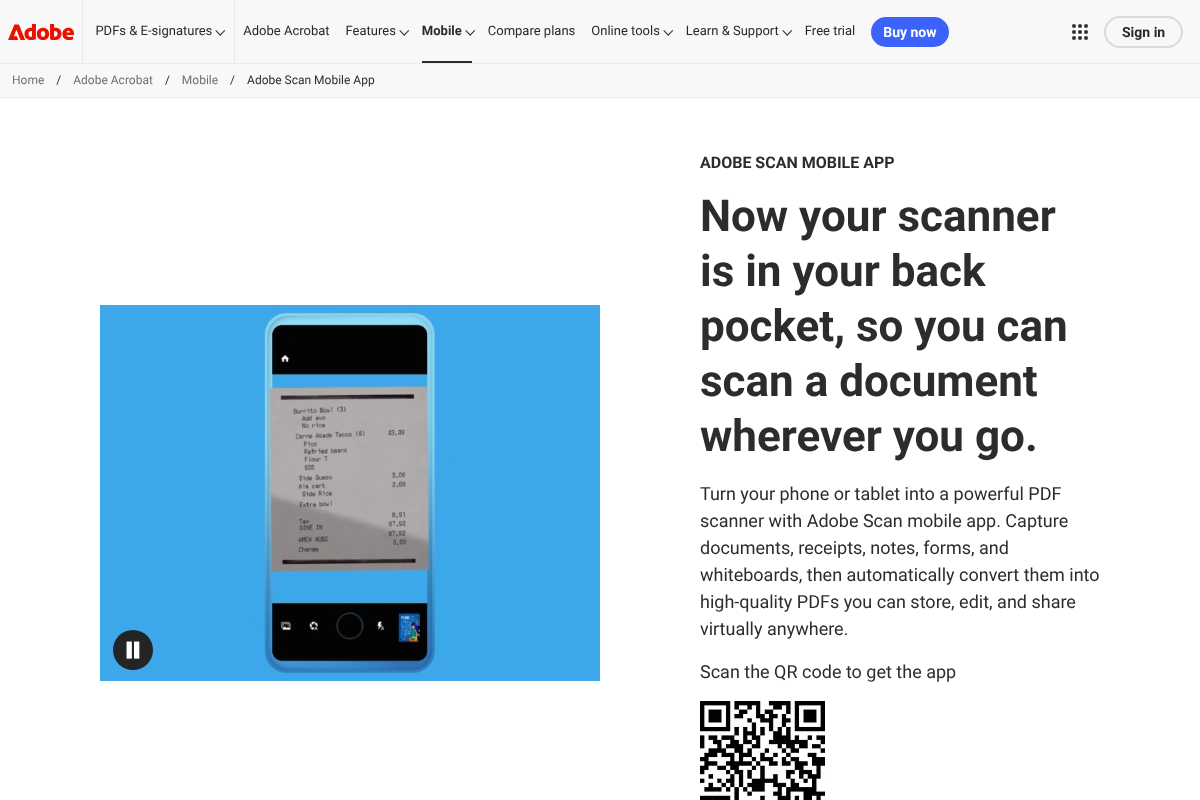
Adobe Scan is the reliable default for searchable output. It automatically runs OCR after a capture and saves a PDF with a proper text layer, so your scans are searchable and the text is selectable without any extra step, all on the free tier.
It leans on Adobe’s cloud for processing and ties neatly into the rest of Acrobat if you use it. For most people who just want a scan they can search later, Adobe Scan is the safe first try, and its OCR accuracy is consistently strong across typed documents.

2. Microsoft Lens
Microsoft Lens is the pick if your documents end up in Office. It runs OCR in its free tier and shines at converting a scan into an editable Word file, a OneNote page, or a searchable PDF, which is handy when you need to edit the text as well as find it.
Photograph a whiteboard or a printed form and it will pull the words into an editable format. For anyone living in Word, OneNote, and OneDrive, that integration makes Lens the most convenient searchable scanner of the group.
3. SwiftScan
SwiftScan is built for people who would rather their documents never touch a server. Formerly Scanbot, it processes scans on your device and can recognize text to make a scan searchable without uploading the file, which matters for contracts, medical records, and IDs.
Its interface is polished and its OCR is capable, with some recognition features on the paid tiers. If privacy is your first concern and you want searchable results without cloud processing, SwiftScan is the standout choice here.
4. Genius Scan
Genius Scan is the dependable offline workhorse. The core scanning is fast and free, and it handles edge detection and multi-page documents cleanly, producing tidy PDFs you can organize with tags.
Its OCR that adds the searchable text layer comes through a paid upgrade rather than the free tier, so budget for that if searchability is the goal. For a clean, no-nonsense scanner that keeps files on your device, it earns its long-standing reputation.
5. Apple’s Built-In Scanner
If you have an iPhone, you may already own the simplest option. The Notes and Files apps can scan documents, and Apple’s Live Text reads the words in the scan so you can select and copy them directly, all on-device and free.
It is not a full document manager, and exporting a fully searchable PDF can take an extra tap, but for quick captures you can actually search afterward, the built-in tools cover a lot without installing anything. For occasional scanning, it is hard to beat free and already there.
6. Google Drive Scan
On Android, Google Drive hides a capable scanner. Its scan feature saves documents straight to your Drive as PDFs and applies text recognition, so the files become searchable within Drive and through Google’s search.
Because it lives where your files already sync, there is nothing extra to manage, and the OCR is free. If you are on Android and use Drive anyway, this is the zero-friction way to get searchable scans without a separate app.
7. Text Fairy
Text Fairy is the answer to the constant request for a free, ad-light OCR tool. It is an open-source Android app that recognizes text in a scan, lets you edit or copy it, and can save the result as a searchable PDF, covering a wide range of languages.
It is more focused on pulling text out than on polished document management, so it pairs well with a simple scanner. For anyone who wants OCR without a subscription, ads, or cloud uploads, Text Fairy is a genuinely free workhorse.
8. Kaagaz Scanner
Kaagaz Scanner rose as a clean, free alternative for people leaving heavier apps behind. It scans documents without stamping a watermark on the free tier, keeps the interface simple, and includes OCR so your scans come out searchable.
It covers the everyday needs, multi-page PDFs, basic editing, and export, without pushing ads the way some rivals do. If you want a straightforward, no-watermark scanner that still gives you searchable text, Kaagaz is worth a look.
App features, OCR quality, and free-tier limits change with updates and differ by device and language. For sensitive documents, check where each app processes and stores your scans, and confirm current OCR and export options on the app’s own listing before you rely on it.
Frequently Asked Questions
What are the best PDF scanner app alternatives that keep text searchable?
Adobe Scan and Microsoft Lens lead for free, accurate OCR that saves a searchable PDF, with Lens best for Office users. SwiftScan and Text Fairy are strong for on-device privacy, Apple’s built-in scanner and Google Drive are free and already on your phone, and Genius Scan and Kaagaz round out the list for clean scanning with OCR.
How do I make sure a scanned PDF is searchable?
Open the finished PDF and try to select a word or use find to search for text on the page. If words highlight and the search lands on them, the app added an OCR text layer and the file is searchable. If nothing selects, the scan is a flat image, so re-scan with an app that runs OCR.
On-device vs cloud OCR: which is better for scanning?
On-device OCR, as in SwiftScan or Text Fairy, keeps the document on your phone, which is safer for contracts, IDs, and medical records. Cloud OCR, as in Adobe Scan or Google Drive, often recognizes text more accurately and across more languages. Choose on-device for privacy and cloud for the highest accuracy on tricky pages.
Is there a free scanner app with OCR and no watermark?
Yes. Adobe Scan, Microsoft Lens, and Google Drive offer free OCR without watermarking your scans, Text Fairy is free and open-source, and Kaagaz Scanner adds no watermark on its free tier. Apple’s built-in Notes and Files scanning is also free on iPhone and iPad with Live Text for selecting words.
Why do people look for a CamScanner alternative?
Common reasons include ads, watermarks on free scans, subscription prompts, and questions about how document data is handled. Many users simply want a free, searchable scanner without those trade-offs, which is why lighter or on-device options like Text Fairy, SwiftScan, and Kaagaz come up so often as alternatives.
The Bottom Line
A scan you cannot search is barely better than the paper it replaced, and OCR is the feature that fixes it. Adobe Scan and Microsoft Lens are the easiest free picks for searchable PDFs, SwiftScan and Text Fairy win on privacy, and your phone’s built-in tools may already do the job. Whichever you choose, run the ten-second select-a-word test so you know the text layer is really there. For more on keeping your digital files in order, browse YouGottaRead’s Everything Else section, including our fixes for shared folder links that stop working and app permissions that break after an update.


