


Setting up streaming for a parent or grandparent starts with good intentions and ends with a phone call an hour later. The remote has twenty tiny buttons, three of them launch apps nobody uses, the home screen is a wall of ads, and the text is too small to read from the recliner. What should be “press play and watch a show” turns into a tech-support relationship. The device you pick makes almost all the difference here.
The best Fire TV Stick alternatives with a simple remote are the ones designed around clarity: a handful of large, clearly labeled buttons, big and legible text, real accessibility settings, and a home screen that does not bury the shows under promotions. Fire TV works, but its remote and ad-heavy home screen can be a lot for a senior who just wants to watch. Here are the players that make it easier, and the honest trade-off with each.
The Short Answer
For most seniors, Roku is the easiest all-round pick: a simple large-button remote, an uncluttered grid of apps, voice search, and accessibility settings like text size and a screen reader, starting around $30. If budget allows and accessibility matters most, the Apple TV 4K has the strongest features and cleanest interface, though it costs more. Google TV is capable but busier, and a big-button remote can simplify any device.
What Makes a Device Senior-Friendly
Before the picks, it helps to know what actually matters, because the marketing rarely says. Four things do the heavy lifting: a remote with few, large, clearly labeled buttons rather than a dense grid; text you can enlarge and menus with high contrast; a home screen that shows apps rather than a rotating wall of ads; and voice search plus a find-my-remote feature for when the remote vanishes into the couch. A device can stream in beautiful 4K and still be frustrating to use if it misses these, which is exactly the gap the picks below try to close.
How We Chose These Picks
We judged each option on the things a senior actually touches: remote simplicity, how large and readable the text and menus can be, the built-in accessibility settings like screen readers and captions, and how cluttered or ad-heavy the home screen feels day to day. Price mattered too, since this is often a gift or a second device, and we favored options that are easy to set up once and then leave alone. We flagged honestly where a device is powerful but too complex for this purpose.
The Best Senior-Friendly Alternatives
1. Roku (Streaming Stick, Streaming Stick Plus, or Ultra)
Roku is the easiest recommendation for most seniors. The remote has just a handful of large, clearly labeled buttons around a big OK pad, the home screen is a plain grid of app tiles, and voice search sits on a dedicated button. Accessibility settings include adjustable text size, a screen reader, and an audio guide, and the step-up Voice Remote Pro adds a headphone jack and can send audio to hearing aids. Prices run from around $30 for a Streaming Stick to about $100 for the Ultra. The honest caveat is that Roku’s home screen does carry ad banners and a promoted tile, though the app grid itself stays simple.
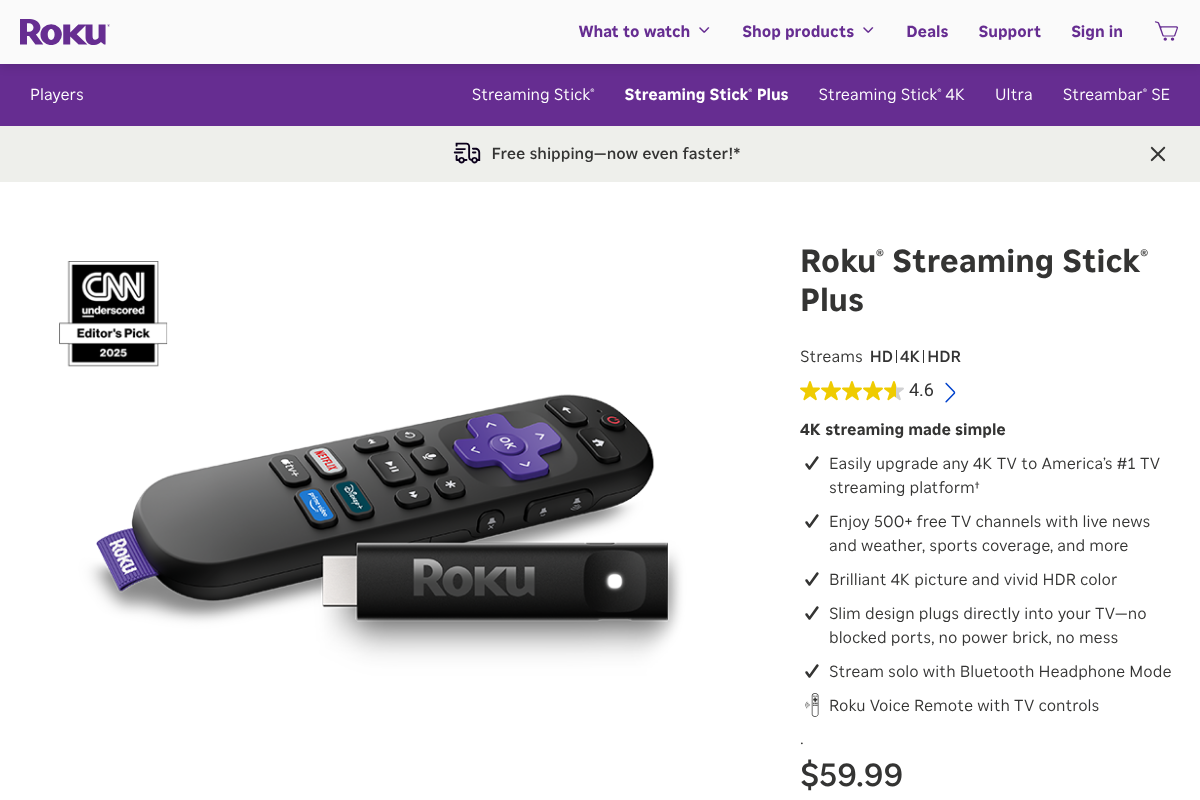

You can compare the players on the Roku site.
2. Apple TV 4K
If accessibility is the priority and budget is flexible, the Apple TV 4K is the strongest choice. It has the most complete accessibility toolkit, including VoiceOver screen reading, bold and larger text, increased contrast, closed captions, and audio descriptions, wrapped in a crisp, low-clutter interface with no ad-stuffed home screen. The Siri Remote is minimal and supports voice. The trade-offs are real, though: it is the priciest option at around $129 or more, and the remote’s touch-sensitive clickpad takes some getting used to for anyone with a lighter touch or shaky hands.
3. Google TV Streamer
Google’s streamer is a capable device with a voice remote, a find-my-remote button, and Google’s accessibility features like TalkBack and adjustable text size, and it fits neatly if the household already uses Google or Nest products. The reason it is not the top senior pick is its interface: Google TV leans heavily on a content-and-recommendation home screen with promotions, which is busier and more distracting than Roku’s plain grid or Apple’s clean layout. For a tech-comfortable senior it is fine; for one who wants the simplest possible screen, it is more than they need.
4. A Roku TV, if you are replacing the set
If the television itself is due for an upgrade, buying a TV with Roku built in collapses two remotes into one and puts the same simple Roku interface right on the set, with nothing extra to plug in. For a senior, one remote instead of two is a genuine win. The obvious catch is that this only makes sense if you were going to replace the TV anyway; it is not worth swapping a perfectly good television just for the interface when a $30 streaming stick does the same job.
5. Add a simplified big-button remote
Whatever box you choose, the remote is often the real barrier, so a large-button or backlit universal remote can help more than switching devices. Simplified remotes with a few big, high-contrast keys, or ones set up to control power, volume, and a single streaming input, cut the number of things that can go wrong. The trade-off is a little setup up front and, sometimes, giving up voice search. For a senior who struggles with any standard remote, it is often the single most useful change you can make.
Quick Comparison
| Device | Remote simplicity | Big text / accessibility | Home-screen clutter | Around |
|---|---|---|---|---|
| Roku | Simple, large buttons | Text size, screen reader, audio guide | Some ads, simple grid | $30-$100 |
| Apple TV 4K | Minimal Siri Remote | Strongest (VoiceOver, large text) | Very low | ~$129+ |
| Google TV Streamer | Voice remote | TalkBack, text size | Busier, promotions | ~$100 |
| Roku TV (built in) | One remote for all | Same as Roku | Some ads, simple grid | TV price |
| Big-button remote add-on | Easiest to press | High-contrast keys | N/A | Low |
This is general information to help you compare devices, not a medical or accessibility assessment. Features, interfaces, accessibility settings, and prices change over time and vary by model and region, so confirm the current details on each maker’s site and, where possible, try the remote in person before buying for someone with specific vision or dexterity needs. What works best depends on the individual.
Frequently Asked Questions
What is the best Fire TV alternative with a simple remote for seniors?
Roku is the easiest all-round choice, with a small, large-button remote, a plain grid of apps, voice search, and accessibility settings like adjustable text size and a screen reader, starting around $30. If accessibility is the top priority and budget allows, the Apple TV 4K has the most complete features and the cleanest interface. Both are simpler for a senior than Fire TV’s busier remote and ad-heavy home screen.
Which streaming device has the biggest, most readable text?
The Apple TV 4K has the strongest text and accessibility options, including bold and larger text, increased contrast, and VoiceOver screen reading system-wide. Roku also offers an adjustable text size and a screen reader, which is plenty for most people at a lower price. Google TV has text-size and TalkBack options too. If readability is the single most important factor, Apple TV leads, with Roku a strong and cheaper runner-up.
Is Roku or Apple TV better for an older adult?
It depends on budget and needs. Roku wins on simplicity and price, with a genuinely easy remote and a plain interface for around $30 to $100. Apple TV wins on accessibility depth and a clutter-free, ad-light home screen, but costs about $129 or more and has a touch remote that takes adjustment. For most seniors, start with Roku; choose Apple TV if strong accessibility or an ad-free screen matters most.
Why is Fire TV harder for seniors to use?
Fire TV is a capable device, but two things make it busier for a senior who wants simple: its home screen leans heavily on advertising and promoted content, and its remote includes app-shortcut buttons and lacks accessibility-specific features. That is more to navigate and read than a plain app grid and a few large buttons. It is not that Fire TV is bad, just that the alternatives here are organized around simplicity, which suits this use better.
Can I make any streaming device easier with a different remote?
Yes. A simplified, large-button or backlit universal remote can control most streaming players and cut the clutter of a standard remote down to the few buttons that matter. Some can be programmed to handle power, volume, and one streaming input, which removes a lot of confusion. You give up features like voice search, and there is some setup, but for someone who struggles with any normal remote, it is often the most effective single fix.
The Bottom Line
Streaming for a senior should be press-a-button-and-watch, and the right device gets you there. Roku is the easiest and most affordable pick for most people, with a simple large-button remote and readable text; the Apple TV 4K is the accessibility champion if you can spend more; and a big-button remote can rescue almost any setup. Skip the powerful, complex boxes for this purpose, and remember that one remote and a plain home screen beat raw specs every time. For more on tuning the experience, see our guides to turning off audio description when it keeps switching on and streaming services with proper kids profiles and PINs, or browse the YouGottaRead Tech section.


