


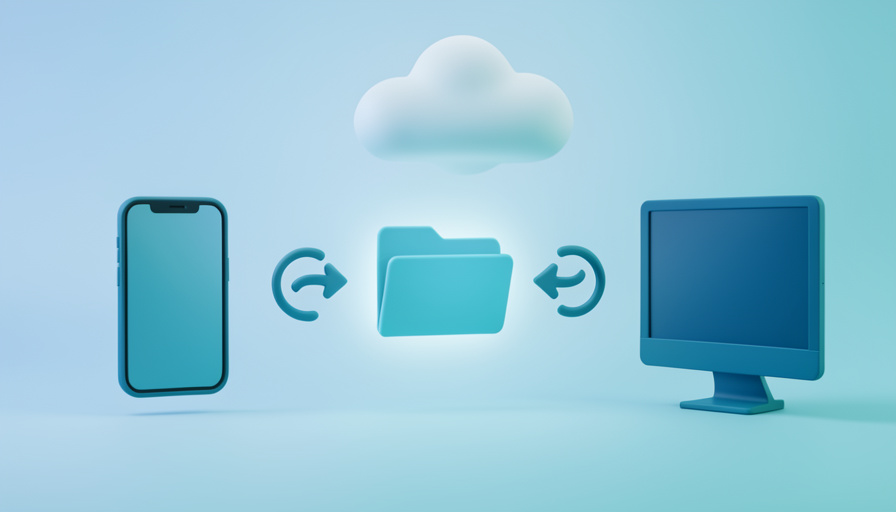
Running an iPhone and a Windows PC at the same time is a small daily tax. The two do not belong to the same ecosystem, so the thing that should be simple, keeping one folder identical in both places, turns into a puzzle of half-working apps, photos that will not come across, and files that live online but refuse to open on the plane. If you have ever watched a spinning icon while a document sat “in the cloud” but not on your screen, you know the feeling.
Choosing among cloud storage alternatives for folder sync across iPhone and Windows comes down to one question most roundups skip: does the service sync the folder you actually work in, or only the folder it wants you to use? Below are seven options compared on that workflow, the true folder sync, the offline files, and the privacy, so you can match one to how you really work rather than to a price chart.
The 7 Alternatives at a Glance
- Dropbox: the most reliable sync engine, plus backup for outside folders.
- pCloud: syncs any folder you point it at, on demand.
- Sync.com: zero-knowledge privacy with straightforward folder sync.
- Microsoft OneDrive: deepest Windows integration for Microsoft 365 users.
- Google Drive: flexible desktop backup and strong collaboration.
- Icedrive: a lightweight encrypted drive with a clean iPhone app.
- Koofr: EU privacy that also connects your existing clouds.
How to Compare Them: What Actually Matters
Price is the easy part, and the wrong place to start. The workflow across an iPhone and a Windows PC breaks down in specific spots, so judge each service against these before you look at the storage tiers:
- True folder sync: can it sync a folder that already lives on your PC, or must you move everything into its special folder?
- Files on demand: does it show every file without downloading all of them, so your laptop drive survives?
- Offline on iPhone: can you mark a folder available offline so it opens with no signal?
- Photos handling: does it back up your iPhone camera roll cleanly, separate from your documents?
- Sharing and permissions: are shared links and access controls simple to manage from both devices?
- Privacy: is your data encrypted so only you hold the key, or can the provider read it?
Almost every complaint about cross-device sync traces back to one of these, usually the first two. A service can be cheap and still fail the folder you care about, which is why the workflow comes first.
Quick Comparison
| Service | Syncs any folder? | Zero-knowledge? | Best for |
|---|---|---|---|
| Dropbox | Via Backup | No | Fastest, most reliable sync |
| pCloud | Yes, any folder | Optional add-on | Syncing folders where they live |
| Sync.com | In its folder | Yes, by default | Private files |
| OneDrive | Known folders only | No | Windows and Office users |
| Google Drive | Yes, from PC | No | Collaboration |
| Icedrive | Yes, sync tool | Optional | A light encrypted drive |
| Koofr | Yes, sync tool | No | Connecting several clouds |
1. Dropbox
Dropbox still has the most dependable sync engine of the group, which is the whole point when files move between an iPhone and a Windows PC dozens of times a day. Changes propagate quickly and rarely conflict, and the Windows client, the web, and the iOS app all stay in step.
By default it syncs the Dropbox folder, but Dropbox Backup can pull in your Desktop, Documents, and Downloads without moving them, and paid plans add online-only files to spare your drive. On the iPhone you mark files or folders available offline. The catch is cost, since Dropbox runs pricier than most for the same storage, and it is not zero-knowledge.
2. pCloud
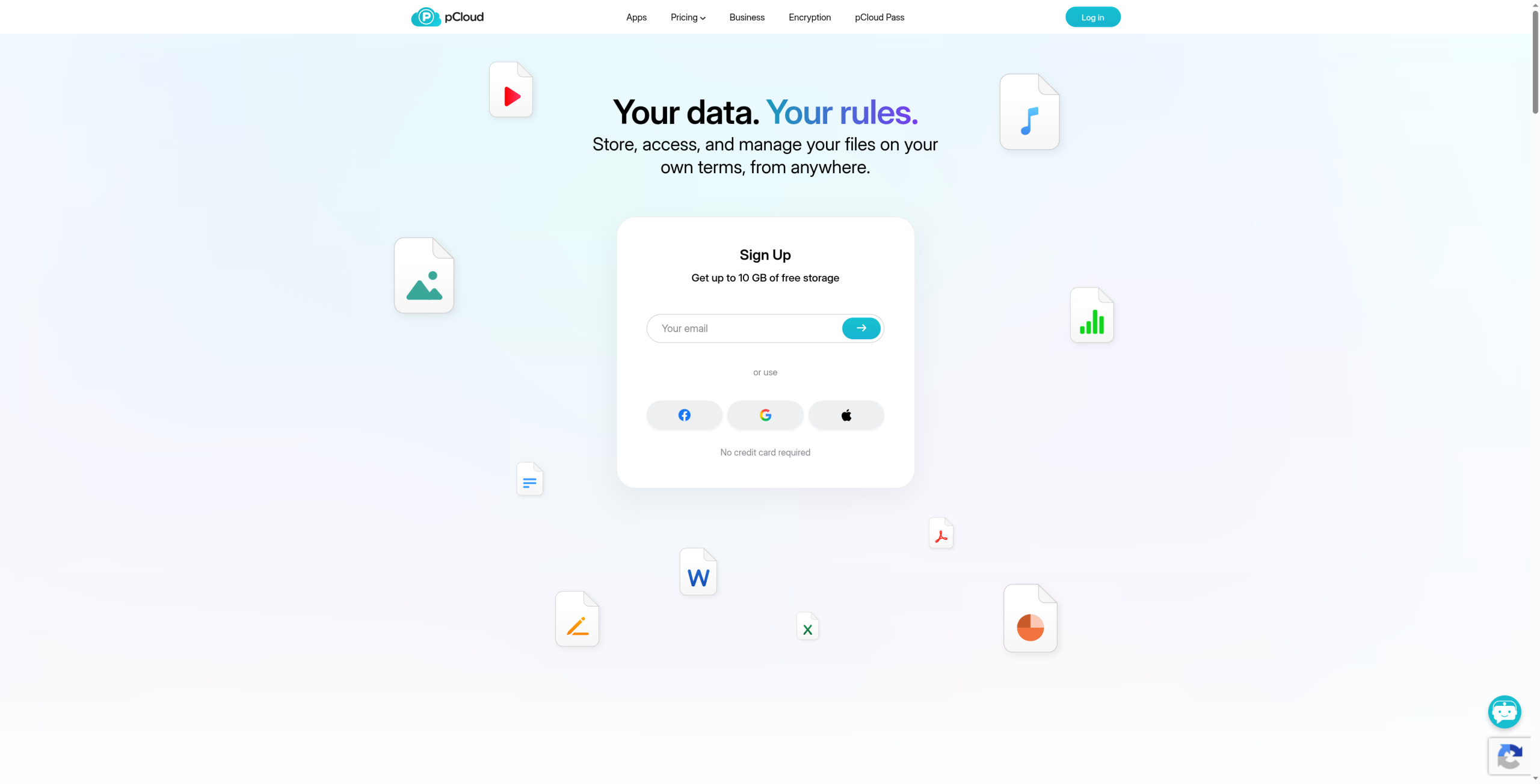
pCloud is the pick when your work lives in a folder that is not going to move. Its Sync feature pairs any local folder on your PC with the cloud and keeps the two identical, so you do not have to reorganize your life into a single app folder the way most services expect.
Alongside that, pCloud Drive mounts as an on-demand virtual drive, so every file appears without eating disk space until you open it, and the iPhone app lets you keep chosen folders offline. Zero-knowledge encryption is a paid add-on called Crypto rather than the default, and the well-known lifetime plans trade a one-time price for no recurring bill.

3. Sync.com
Sync.com leads with privacy. Files are encrypted so that only you hold the key, which means the company cannot read your data, a genuine difference from the mainstream services that scan or index your files. For sensitive documents moving between two devices, that default matters.
The trade is a more contained workflow: you generally work inside the Sync folder rather than syncing arbitrary folders scattered across your PC, and its separate Vault holds files you want stored but not synced. The Windows client and iPhone app are straightforward, with offline access on mobile. If privacy is the priority, this is the natural home.
4. Microsoft OneDrive
OneDrive makes the most sense if you already live in Windows and Microsoft 365. It is built into File Explorer, a Microsoft 365 subscription bundles a terabyte with the Office apps, and Files On-Demand keeps everything visible without filling your drive. The iPhone app covers files and a camera backup.
Its real limit for this exact use case is folder freedom. OneDrive syncs its own folder plus your Desktop, Documents, and Pictures through Known Folder Move, but it will not continuously sync some other folder deep on your drive unless you relocate it. For Office-centric users that is fine, and for people who want a specific existing folder synced, it chafes.
5. Google Drive
Google Drive is the flexible middle ground, especially if you collaborate. Its Drive for desktop app can either mirror files locally or stream them on demand, and it can back up and sync folders you choose from your PC rather than forcing everything into one directory, which solves the arbitrary-folder problem OneDrive has.
On the iPhone, Drive integrates with the Files app and lets you make documents available offline, and its editing and sharing tools are the best here for working with other people. It is not zero-knowledge, and heavy Google Photos users should know that photo and Drive storage share the same account allowance.
6. Icedrive
Icedrive is the lightweight option that still takes privacy seriously. It presents your storage as a slick virtual drive on Windows, offers client-side encryption on its paid tiers, and sells lifetime plans like pCloud, which appeals if you dislike subscriptions. The iPhone app is clean and easy to move around.
Its sync tool can keep a chosen folder in step rather than confining you to one app folder, though its ecosystem and integrations are smaller than the giants here. For someone who wants an encrypted, no-fuss drive across an iPhone and a Windows PC without paying Dropbox prices, it is a tidy fit.
7. Koofr
Koofr is a quieter European service with a privacy-friendly stance and one unusual trick: it can connect your existing Dropbox, Google Drive, and OneDrive accounts and search across all of them from one place. If your files are already scattered across several clouds, that consolidation is the draw.
Its desktop app syncs folders you select on Windows, and the iPhone app handles files and an automatic photo upload. Koofr does not advertise zero-knowledge encryption, so treat it as a privacy-respecting, no-nonsense option rather than a maximum-secrecy vault, and one that plays well with the accounts you already have.
Features, storage tiers, and prices for these services change often, and how each behaves can depend on your plan and app version. Treat this as a map of the trade-offs rather than a spec sheet, and confirm the current limits, encryption details, and folder-sync options on each provider’s own site before you commit or pay for a year.
Frequently Asked Questions
What is the best cloud storage alternative for folder sync on iPhone and Windows?
It depends on your workflow. For the most reliable syncing, Dropbox leads. To sync a folder exactly where it already sits on your PC, pCloud and Google Drive handle that best. For private files, Sync.com encrypts so only you hold the key. If you live in Microsoft 365, OneDrive’s Windows integration is hard to beat.
Why won’t my files sync properly between my iPhone and Windows PC?
Usually because the file is set to online-only, or the folder you expect to sync sits outside the app’s synced folder. Check that the file is marked available offline on the iPhone, confirm the folder is actually inside the service’s sync scope, and make sure the desktop client is running and signed in on Windows.
Can I sync any folder on my PC, or only the app’s special folder?
That varies by service, and it is the key thing to check. pCloud, Google Drive, Icedrive, and Koofr can sync folders you choose from anywhere on your PC. OneDrive is limited to its own folder plus Desktop, Documents, and Pictures, and Dropbox handles outside folders through its separate Backup feature.
pCloud vs OneDrive for cross-device folder sync: which is better?
For pure folder freedom, pCloud wins because it syncs any local folder you point it at and offers lifetime plans. OneDrive wins if you use Windows and Microsoft 365 heavily, thanks to built-in File Explorer integration and the bundled Office apps. Pick pCloud for flexible sync, OneDrive for a tightly integrated Windows experience.
Which cloud storage keeps my files private from the provider?
Zero-knowledge services encrypt your data so the company cannot read it. Sync.com does this by default, and pCloud and Icedrive offer client-side encryption as a paid option. Mainstream services like OneDrive and Google Drive encrypt data in transit and at rest but can technically access it, which matters for sensitive folders.
The Bottom Line
The right cloud storage for an iPhone and a Windows PC is the one that syncs the folder you actually use, keeps files available offline when you need them, and matches your comfort level on privacy. Start with the workflow, not the price: decide whether you need any-folder sync, encryption, or deep Office integration, then the shortlist narrows itself to a clear pick. For more on keeping your devices working smoothly together, browse YouGottaRead’s Tech section, including our guides to why your WiFi says connected but nothing loads and browser settings that make websites look broken.


