


It always seems to happen at the worst moment. You are mid-navigation, a podcast is going, and wireless Android Auto simply lets go, then spends the next minute trying and failing to reconnect while the map freezes. Often it worked fine until a head-unit or phone update quietly changed something. The frustrating part is that the feature is genuinely great when stable, so most people would rather fix it than give it up.
If you need Android Auto alternatives because the wireless connection keeps disconnecting, you have a spread of options, from the simplest fix to full replacements. Wireless Android Auto runs over a Wi-Fi link plus Bluetooth, and that radio connection is what drops, so the most reliable answers either take the wireless part out of the equation or hand it to hardware built for the job. Here are the fixes and alternatives worth trying, and the honest trade-offs of each.
The Short Answer
The most reliable fix is to go wired with a good data USB cable, which sidesteps the flaky wireless link entirely. If you want to keep wireless, a dedicated adapter like the Motorola MA1 or AAWireless often runs steadier than a car’s built-in wireless. To skip Android Auto altogether, a car-launcher app or standalone Google Maps on a phone mount works. First, update Android Auto, since a known wireless bug was patched.
How We Chose These Picks
The problem is a connection that will not stay up, so the first thing we looked for in every option was reliability, whether it achieves that by going wired, using purpose-built hardware, or leaving Android Auto behind. We weighed cost, how much of the Android Auto experience each keeps, whether it uses your car’s screen or your phone’s, and how fiddly setup is. We also favored fixes you can try in order, from free to paid, so you can stop as soon as one holds a stable connection.
Why Wireless Android Auto Drops
Understanding the cause points you to the right fix. Wireless Android Auto pairs over Bluetooth and then moves the real work to a Wi-Fi connection, and that Wi-Fi link is sensitive to interference, distance, and the specific mix of your phone, car, and their firmware. A phone or head-unit update can change how they negotiate the connection, which is why a setup that was fine last month suddenly stutters.
Two things are worth knowing before you spend money. First, Google patched a wireless-disconnect bug that a 2026 Android Auto update had introduced, so updating the Android Auto app may fix it outright. Second, wireless adapters can run hot, and heat is a common reason a dongle disconnects after working at first. This is the same underlying issue that affects wireless Apple CarPlay, covered in our companion guide linked below, so the logic carries across.
The Best Fixes and Alternatives
1. Go Wired With a Good Data Cable
The single most reliable option is to plug in. A quality USB data cable, not a charge-only one, into your car’s Android Auto port gives you a stable connection with no radio to drop, and it charges the phone at the same time. It is free if you already own the cable, and it just works. The only downside is the cable itself, which some people find less tidy than wireless, but for rock-solid reliability it is unbeaten.
2. Motorola MA1 Wireless Adapter
If you want wireless back without the built-in flakiness, the Motorola MA1 is Google’s officially certified wireless Android Auto adapter. It plugs into your wired Android Auto USB port and makes the connection wireless, typically for around forty to forty-five dollars, with a simple setup. The honest caveat from owners is that it can get warm and occasionally disconnect when it does, so placement with some airflow helps.
3. AAWireless
AAWireless is the enthusiast favorite, a dongle that turns a wired head unit wireless and gives you an app full of settings to tune stability, with the newer models supporting both Android Auto and CarPlay. It costs more, generally around sixty to eighty dollars, but the configurability lets you work around problem cars that a simpler adapter cannot. Reliability reports are mostly strong, though like any adapter it depends on your specific vehicle.
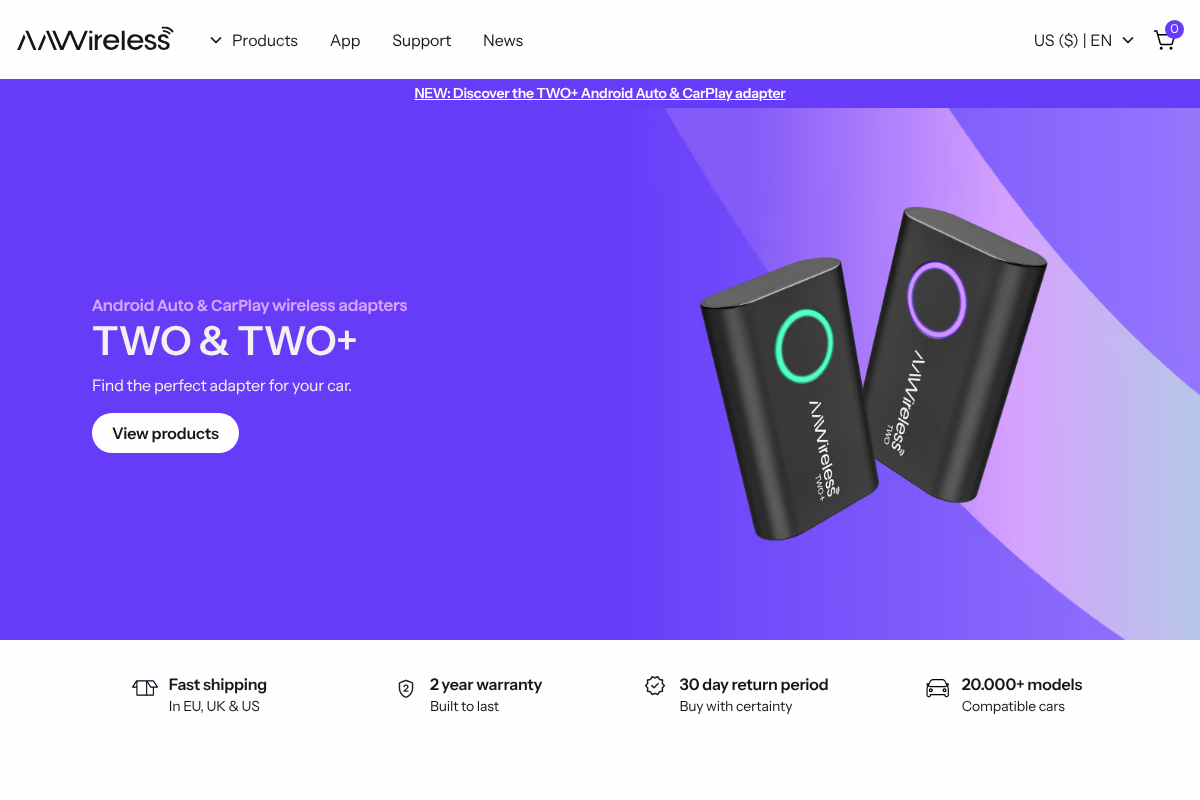

See AAWireless for its adapters and configuration app.
4. A Car-Launcher App on a Phone Mount
If your car’s Android Auto is the weak link, you can bypass it and run a car-friendly interface on the phone itself. Launcher apps such as Car Launcher, CarWebGuru, or AGAMA give you a big-tile, driving-focused dashboard with your maps, music, and shortcuts, used on a phone mount rather than the car screen. The trade-offs are that these are not official Android Auto, so integration with the car is limited, and you are looking at your phone instead of the built-in display.
5. Standalone Google Maps or Waze
Sometimes you only really need navigation and audio, and for that a phone mount with Google Maps or Waze running directly is simple and dependable. There is no Android Auto layer to fail, your phone handles everything, and Bluetooth carries the audio to your speakers. You lose the unified car interface and voice-first design of Android Auto, but for a reliable map and music while the wireless issues get sorted, it is a clean fallback.
6. Bluetooth Audio Only
The most basic fallback is to skip the screen entirely and use plain Bluetooth for music and calls. It is rock solid because it does almost nothing fancy, and every car with Bluetooth supports it. Obviously you give up on-screen maps and app control, so pair it with a phone mount if you need navigation, but as a stopgap that never drops, it is worth remembering.
7. An Aftermarket Head Unit
If the built-in system is the root of the trouble and you are ready to invest, an aftermarket head unit with wired, and often wireless, Android Auto and CarPlay can be far more reliable than a flaky factory unit, with better radio hardware. It is the priciest route once you add installation, and it may not suit newer cars with deeply integrated screens, but for an older vehicle it is a lasting fix.
Before You Switch: Quick Stability Checks
Try these first, since one may save you a purchase:
- Update Android Auto and your phone. A recent wireless-disconnect bug was patched, so an update may resolve it directly.
- Forget and re-pair. Remove the car from Bluetooth and Wi-Fi, then set up the connection fresh.
- Reduce interference. Take off a thick phone case, unplug other USB devices, and cut the number of paired Bluetooth gadgets competing for attention.
- Check the head-unit firmware. If your carmaker has a software update, it may address the connection.
- Test a wired cable. If wired holds steady, you have confirmed the wireless link is the problem and can choose an adapter or stay wired.
Quick Comparison
| Option | Wireless | Uses car screen | Around |
|---|---|---|---|
| Wired data cable | No | Yes | Cable cost |
| Motorola MA1 | Yes | Yes | ~$40 |
| AAWireless | Yes | Yes | ~$60 to $80 |
| Car-launcher app | N/A (phone) | No (phone) | Free or low |
| Maps or Waze on a mount | N/A (phone) | No (phone) | Free |
| Aftermarket head unit | Often | Yes (new unit) | Higher plus install |
This roundup is general information to help you compare. Product features, prices, app availability, and Android Auto behavior change often and vary by car, phone, and head unit, so confirm current details on each maker’s site and test compatibility with your vehicle before buying. Model names and prices are approximate and current at publication.
Frequently Asked Questions
What are the best Android Auto alternatives when wireless keeps disconnecting?
The most reliable is going wired with a good data cable, which removes the wireless link entirely. To keep wireless, the Motorola MA1 or AAWireless adapters often run steadier than a car’s built-in system. To leave Android Auto behind, a car-launcher app or standalone Google Maps on a phone mount works. First, update the Android Auto app, since a recent wireless-disconnect bug was patched.
Wired vs wireless Android Auto: which is more reliable?
Wired is more reliable. A data cable carries the connection directly with no radio interference, distance, or pairing handshake to fail, and it charges your phone too. Wireless is more convenient, connecting automatically when you get in, but it depends on a clean Wi-Fi link that updates and interference can disrupt. If stability matters most, use a good data cable; if convenience wins, an adapter is the middle ground.
Do wireless Android Auto adapters like the MA1 or AAWireless fix dropping?
Often, yes, because a dedicated adapter can run a more stable connection than a car’s built-in wireless. The Motorola MA1 is Google-certified and simple, while AAWireless adds settings to tune tricky cars. Neither is guaranteed on every vehicle, and adapters can disconnect if they overheat, so give them airflow. Many drivers find one of them ends the drops that the factory wireless could not.
Can I use Android Auto without the car’s built-in system?
Yes. Car-launcher apps such as Car Launcher or CarWebGuru run a driving-friendly dashboard on your phone, used on a mount, and standalone Google Maps or Waze cover navigation with Bluetooth audio. These skip Android Auto and the car’s flaky wireless entirely. The trade-off is you look at your phone rather than the built-in screen, and integration with the car is more limited than official Android Auto.
Why did Android Auto start disconnecting after an update?
Updates can change how your phone and head unit negotiate the wireless connection, which can introduce instability. In one case, an Android Auto update introduced a wireless-disconnect bug that Google later patched, so updating again may fix it. A head-unit firmware update can also be the cause or the cure. Start by updating the Android Auto app and your phone, then re-pair, before assuming you need new hardware.
The Bottom Line
A wireless Android Auto connection that keeps dropping is annoying, but it is very fixable, and you do not have to give up a good in-car setup. Update the app first, since a recent bug was patched, then reach for the fix that fits you: a data cable for unbeatable reliability, a Motorola MA1 or AAWireless adapter to keep wireless steadier, or a launcher app and phone mount to sidestep Android Auto altogether. Match the option to whether you value convenience or a connection that simply never lets go. For the Apple side of this same problem, see our guide to wireless CarPlay that keeps dropping, and for cable know-how, why a USB-C cable can charge but not carry data, or browse the YouGottaRead Autos section.


